Dead Pixel Tester
Easily spot dead pixels, stuck sub-pixels, and backlight bleed on your display. Our tool enters full-screen mode and cycles through pure colors to reveal hardware defects.
Requires full-screen permission. Press ESC to exit anytime.
Diagnostic Summary
Did you observe any stuck (colored) or dead (black) pixels during the color cycle test?
Excellent! Your monitor is in perfect working order with no dead or stuck pixels. Backlight bleeding was also either non-existent or within normal parameters.
- Double-Check: Wipe the spot gently with a microfiber cloth. A dust particle can easily look like a dead pixel.
- Stuck vs. Dead: If the pixel is a bright color (Red/Green/Blue), it is stuck. You can search for "stuck pixel fixers" which flash colors rapidly to try and revive it. If it is purely black, it is dead and cannot be repaired.
- Warranty Check: Most manufacturers have a "Dead Pixel Policy" (often allowing replacement if there are 3-5+ dead pixels). Check your device's warranty status.
What are Screen Defects?
Screen defects in modern LCD and OLED displays typically manifest as dead pixels, stuck pixels, or backlight bleeding. A dead pixel remains permanently black because its transistor is broken, while a stuck pixel continuously displays a single color (red, green, or blue) because it is constantly receiving power.
Types of Display Defects
| Defect Type | Appearance | Can it be fixed? |
|---|---|---|
| Dead Pixel | Permanently Black dot | No (Hardware failure) |
| Stuck Pixel | Bright Red/Green/Blue dot | Sometimes (Flashing tools/massage) |
| Hot Pixel | Permanently White dot | No (Common in cameras/sensors) |
| Backlight Bleed | White glow on screen edges | No (Panel assembly issue) |
What is Dead Pixels vs Stuck Pixels?
A dead pixel is a permanently failed hardware transistor that displays as a constant black dot across all backgrounds. A stuck pixel is an energized sub-pixel locked to red, green, or blue that can frequently be unstuck and restored through high-frequency color flashing.
Frequently Asked Questions
Learn how to identify and deal with monitor defects.
What is a dead pixel?
A dead pixel is a picture element on your display that fails to light up, always remaining black regardless of the image being shown. This usually happens due to a manufacturing defect where the transistor powering that pixel has failed.
If a pixel is stuck on one color, is it a sign that the entire display is failing?
Not necessarily. A single stuck sub-pixel is usually an isolated transistor defect and rarely spreads across the panel. However, if multiple adjacent pixels fail simultaneously, it may indicate a damaged display ribbon cable or failing power inverter.
What is the difference between a pixel line defect and an individual stuck pixel?
An individual stuck pixel affects just one sub-pixel dot. A vertical or horizontal colored line across your entire screen indicates a failure in the panel's row/column driver ICs or a cracked flex cable, requiring professional panel replacement.
What is a stuck pixel?
Unlike a dead pixel that is always black, a stuck pixel is permanently locked to a specific color—usually red, green, or blue. It occurs when one or more of the sub-pixels are constantly receiving power.
Can I fix a dead or stuck pixel?
Dead pixels (black) are permanent hardware defects and cannot be fixed. Stuck pixels (colored), however, can sometimes be revived. Lightly massaging the area with a microfiber cloth or running rapid color-flashing software can sometimes unstick them, but there is no guarantee.
What is backlight bleeding?
Backlight bleeding occurs when light from the monitor's backlight leaks around the edges or corners of the screen. This is most noticeable in dark rooms when the screen is displaying a purely black image.
How can I test my screen for dead pixels?
To test for dead pixels, clean your screen thoroughly to remove dust. Then, use a full-screen color test tool that cycles through pure white, black, red, green, and blue. Inspect the screen closely for any dots that do not match the background color.
Does warranty cover dead pixels?
Most monitor and TV manufacturers have a specific 'Dead Pixel Policy.' Typically, a single dead pixel is not covered. Warranties usually require a minimum cluster of 3 to 5 dead or stuck pixels in a specific area to qualify for a free replacement.
Recommended Technical Guides
 6 min read
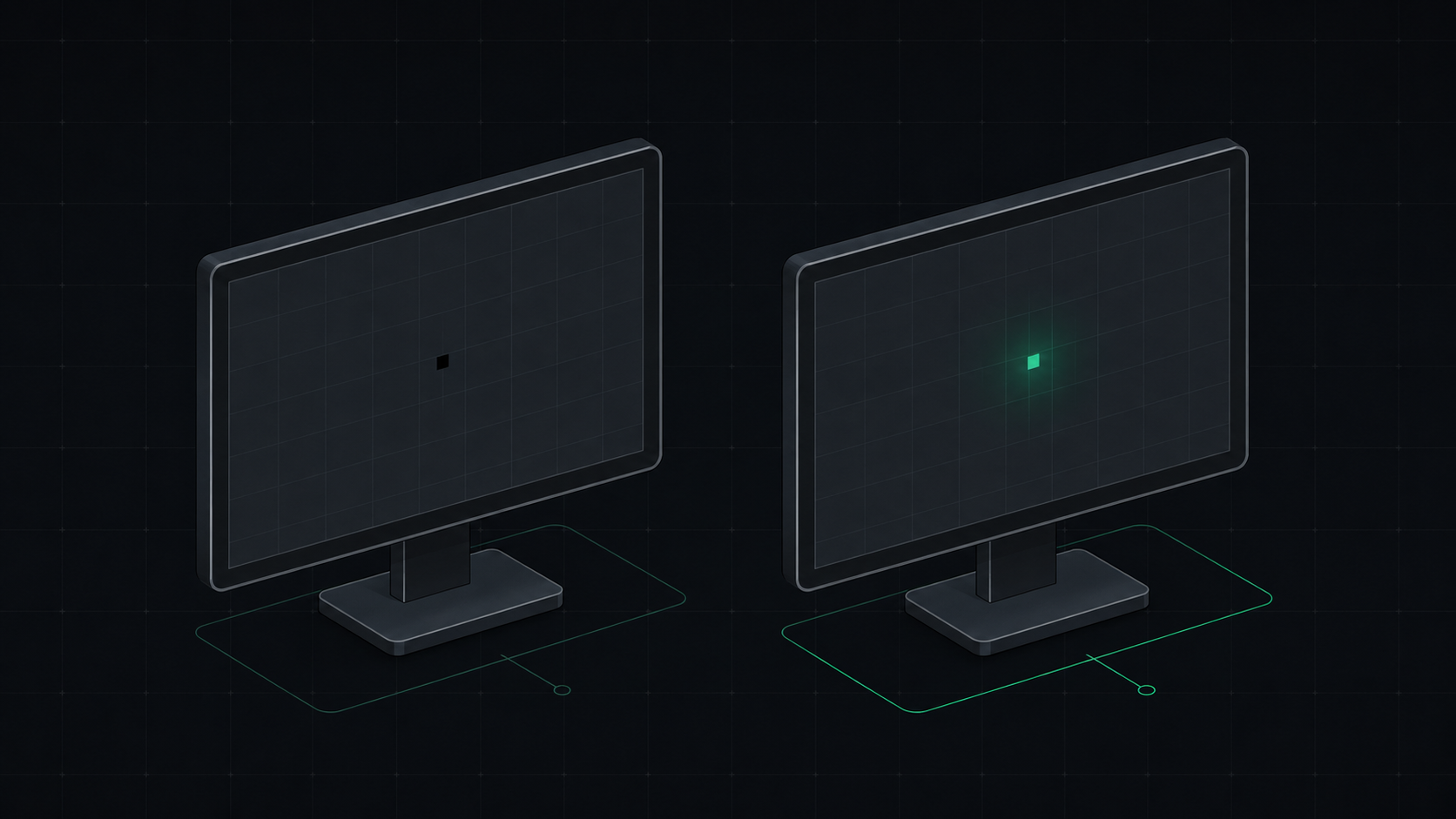
Dead Pixel vs Stuck Pixel: How to Tell the Difference and Fix It
Learn the exact difference between a dead pixel and a stuck pixel, how to test for both, and what you can do to fix a stuck pixel on your monitor, laptop, or phone screen.
 9 min read
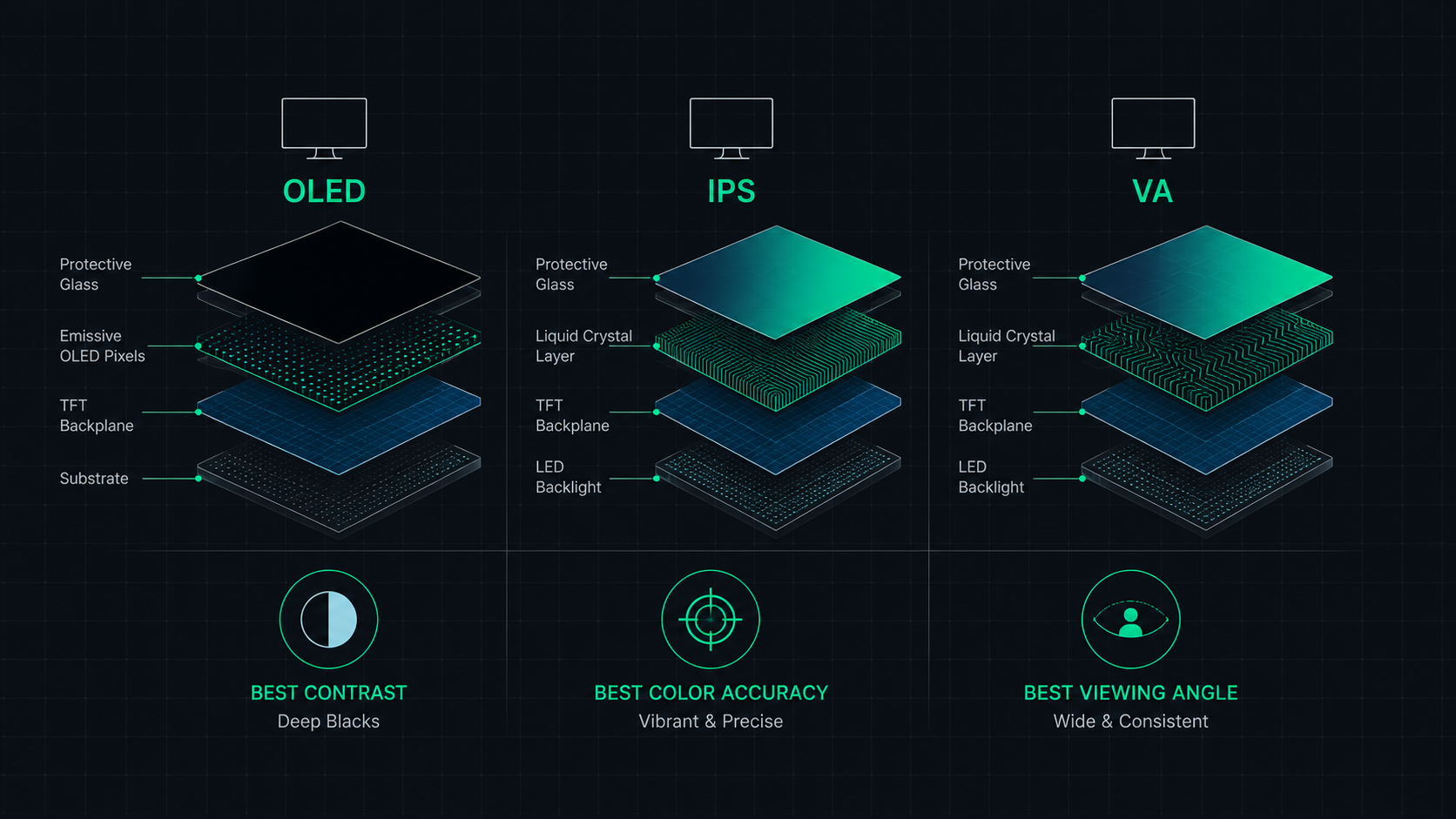
OLED vs IPS vs VA: Which Monitor Panel Type Is Best for You?
Complete comparison of OLED, IPS, and VA monitor panel technologies for gaming, creative work, and everyday use. Understand the trade-offs of contrast, color accuracy, response time, and burn-in risk to make the right choice in 2026.
 5 min read
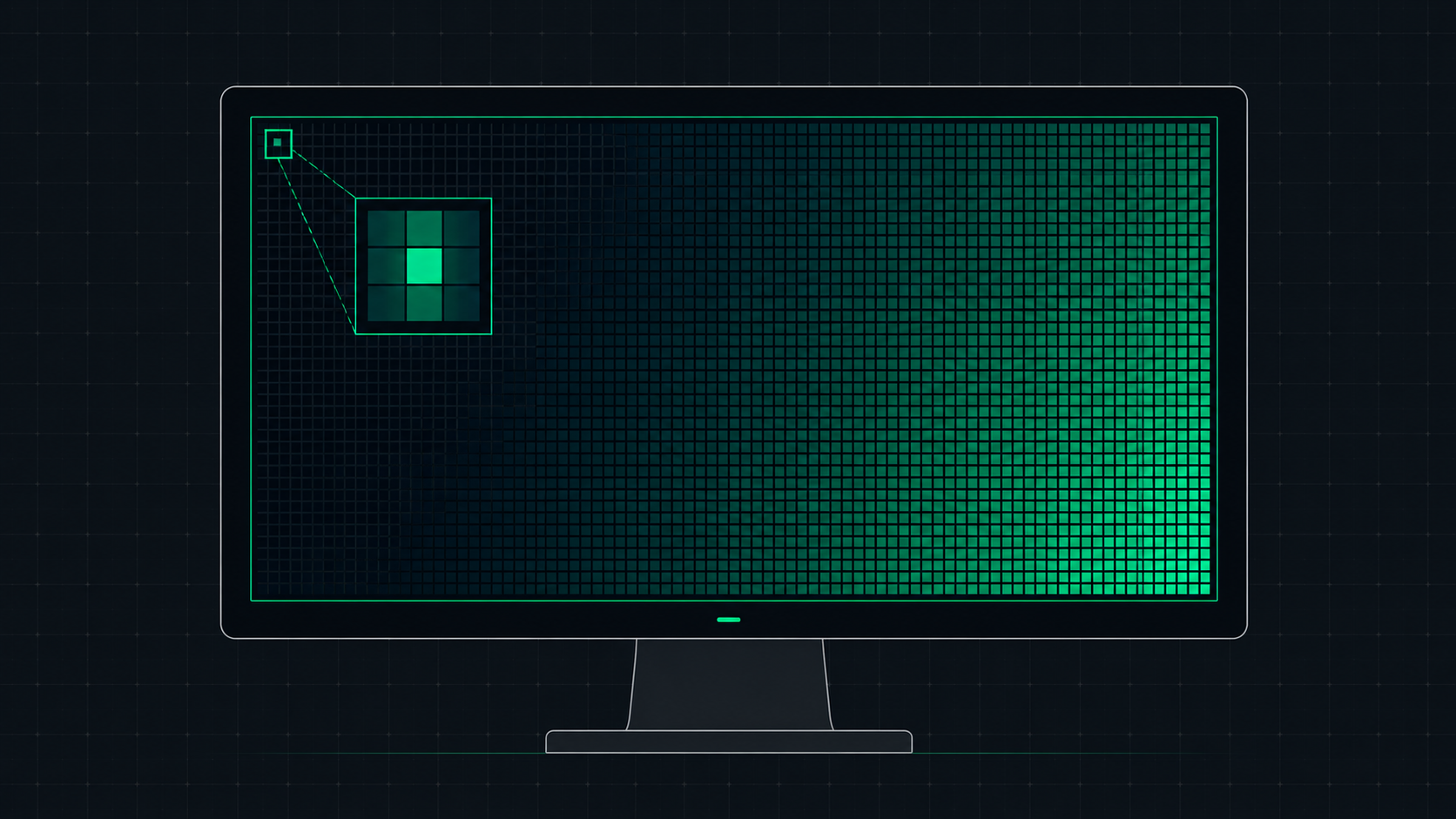
What is Screen Resolution? A Plain-English Guide
Screen resolution is the number of pixels displayed on your screen horizontally and vertically. Learn what resolution means, the difference between HD, Full HD, QHD, and 4K, and how to check and change your display resolution.
Click anywhere to change color
Press ESC to exit