Mouse DPI Analyzer
Calculate your true physical mouse DPI and cursor sensitivity by dragging your mouse across an on-screen target.
How to measure: Click inside the box below, hold down your mouse button, move your physical mouse exactly 1 inch (2.54 cm) to the right, and release.
Hardware sensor DPI.
Cursor displacement delta.
Esports tier classification.
What is Mouse DPI (Dots Per Inch)?
Mouse DPI (Dots Per Inch) measures the physical hardware sensitivity of an optical or laser sensor, representing how many pixels the cursor moves on screen for every physical inch of mousepad travel.
Frequently Asked Questions
What is mouse DPI (Dots Per Inch)? ↓
DPI (Dots Per Inch) measures the physical hardware sensitivity of your mouse sensor. A DPI of 800 means moving your mouse 1 physical inch across your mousepad moves the cursor 800 pixels on your screen.
How do I test my mouse DPI online? ↓
Use our interactive DPI analyzer below. Click the start marker, move your physical mouse exactly 1 inch (2.54 cm) to the right across your mousepad, and release. The tool counts the exact pixel displacement to calculate your mouse DPI.
What is the best mouse DPI for gaming? ↓
Most competitive FPS esports pros (Valorant, CS2) use 800 DPI or 1600 DPI combined with low in-game sensitivity. High DPI (1600+) reduces mouse sensor latency and smoothing, while 800 DPI provides comfortable desktop navigation.
What is eDPI (Effective DPI)? ↓
eDPI is calculated by multiplying your physical mouse DPI by your in-game sensitivity (e.g., 800 DPI × 0.35 Valorant Sens = 280 eDPI). It allows gamers to compare true sensitivity across different hardware.
Recommended Technical Guides
 5 min read
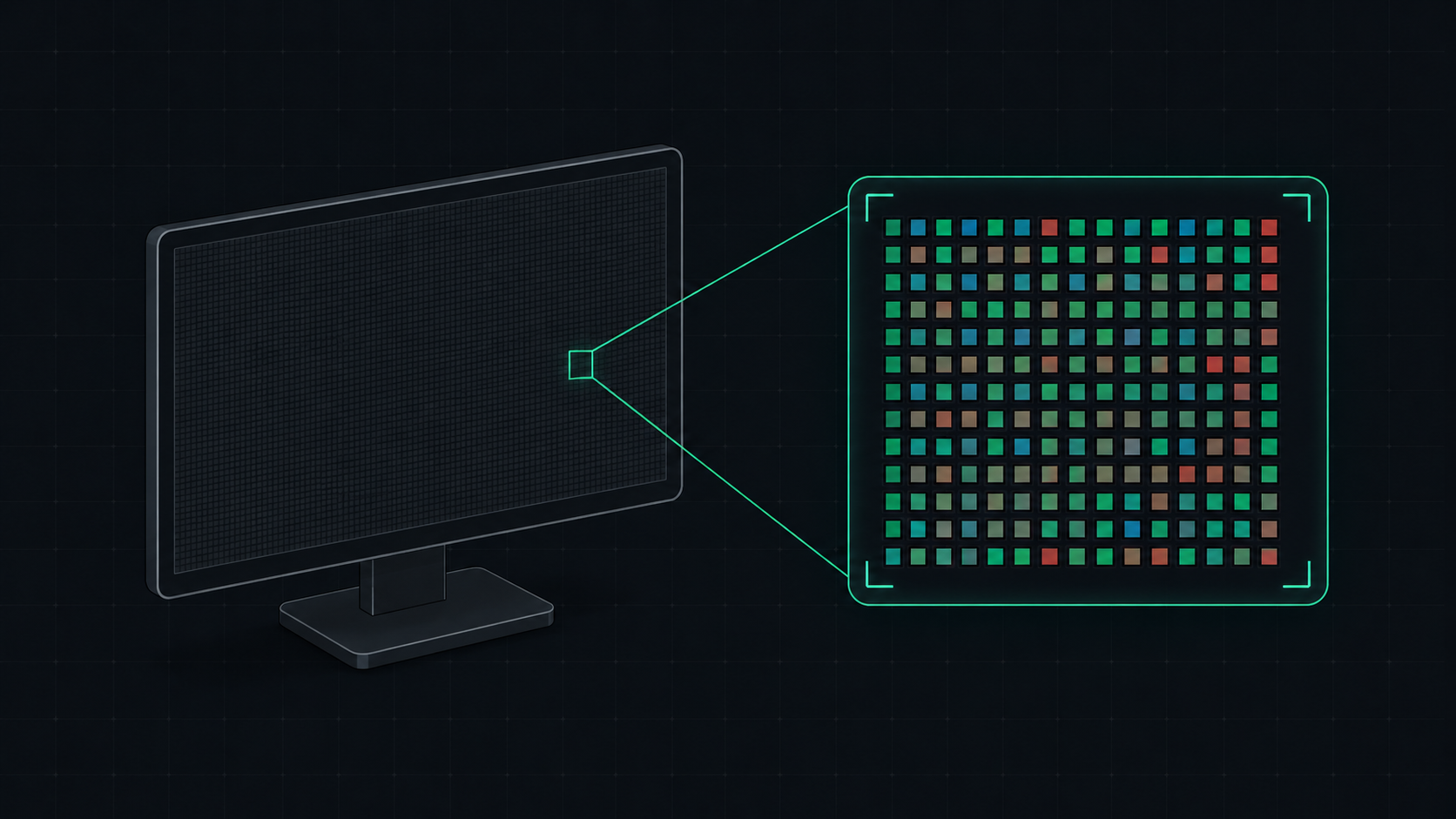
What is PPI? Pixels Per Inch Explained Simply
PPI (Pixels Per Inch) measures how many pixels are packed into one inch of a display screen. Learn what PPI means, how it affects image quality, and what a good PPI is for monitors, phones, and TVs.
 7 min read
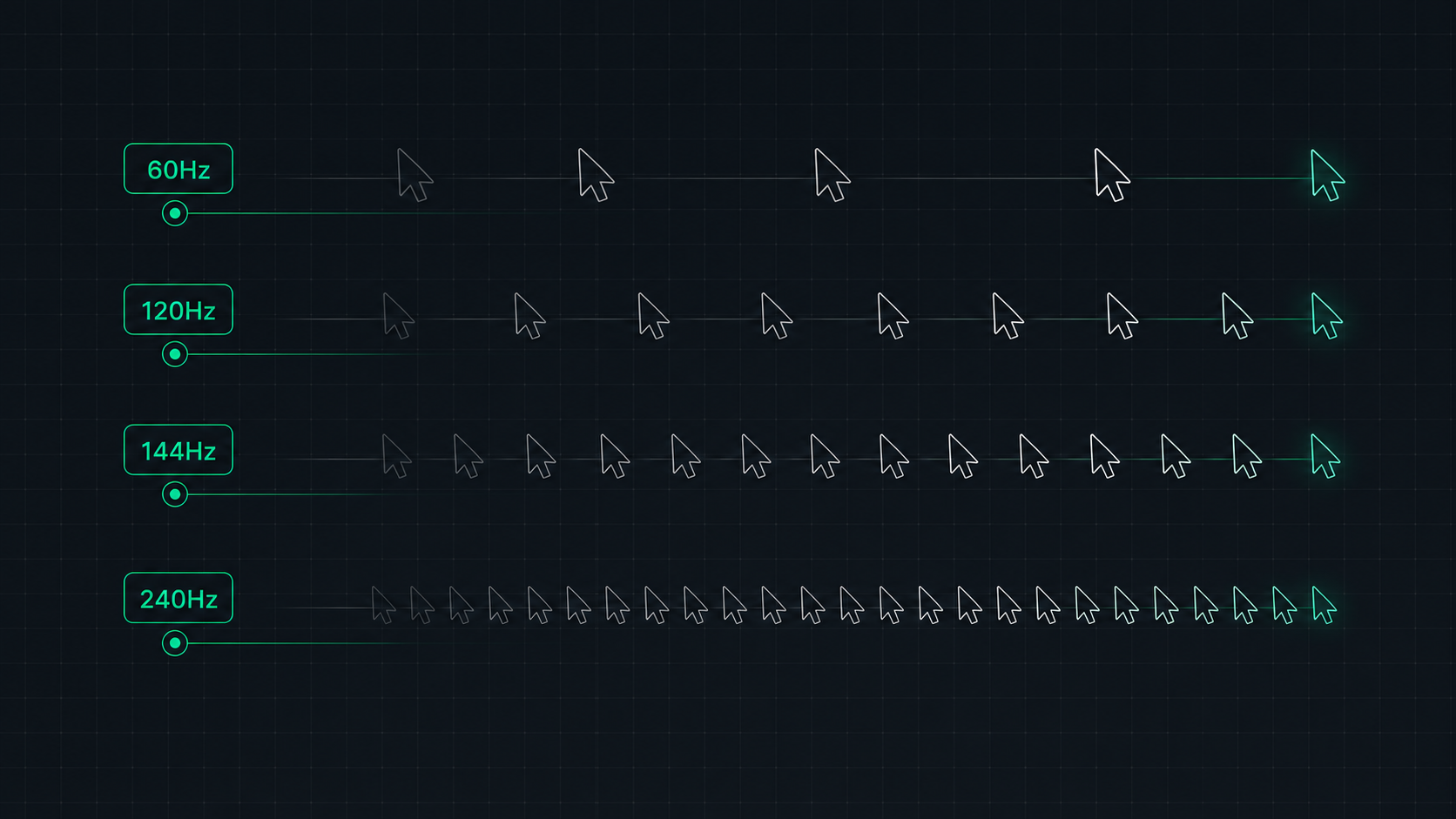
Monitor Refresh Rate Explained: 60Hz vs 120Hz vs 144Hz vs 240Hz
Understand monitor refresh rates and how they impact gaming, video, and everyday use. Learn the real difference between 60Hz, 120Hz, 144Hz, and 240Hz displays and which is right for your setup in 2026.
 6 min read
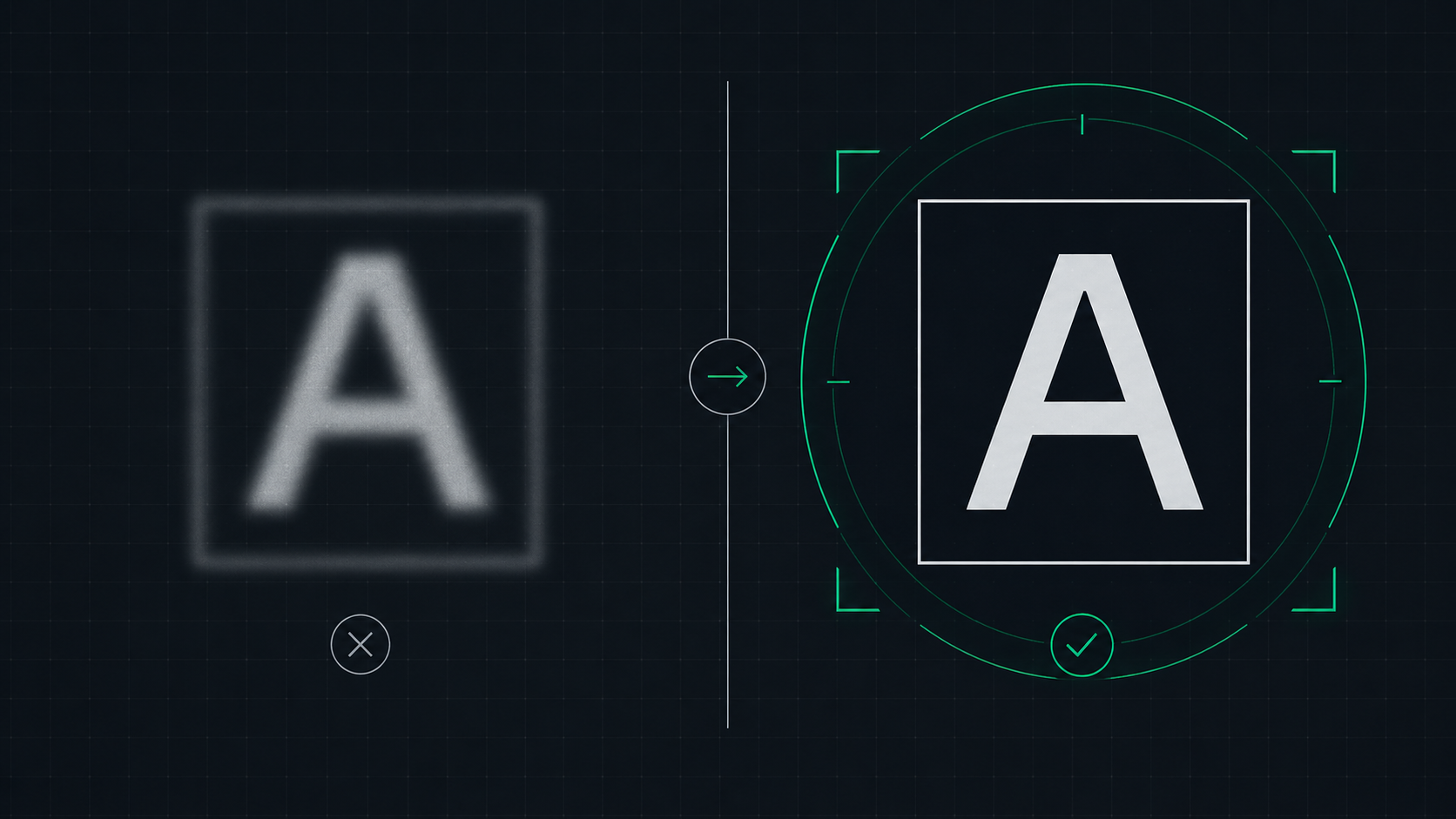
How to Fix a Blurry Screen on Windows and Mac (2026 Guide)
Step-by-step guide to fixing blurry text and blurry displays on Windows 11, Windows 10, and macOS. Fix display scaling issues, ClearType settings, and external monitor blurriness caused by incorrect resolution or HiDPI settings.