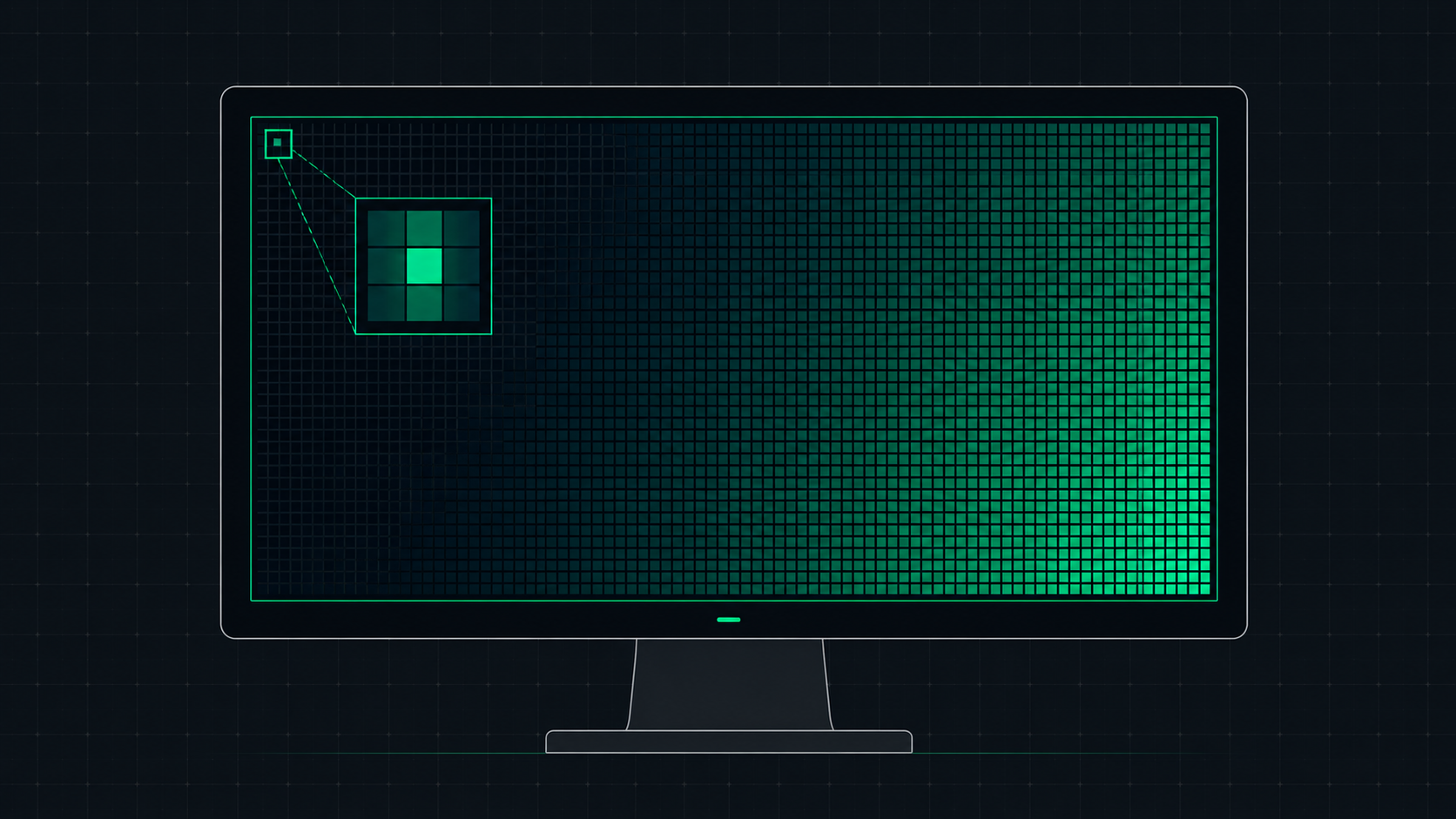
Screen resolution is the number of pixels displayed on your screen horizontally and vertically. Learn what resolution means, the difference between HD, Full HD, QHD, and 4K, and how to check and change your display resolution.
What Is Screen Resolution?
Screen resolution is the number of pixels displayed on your screen, expressed as width × height. A resolution of 1920×1080 means the screen shows 1,920 pixels horizontally and 1,080 pixels vertically — approximately 2 million total pixels. A resolution of 3840×2160 (4K) shows about 8.3 million pixels — four times as many as 1080p.
More pixels means more detail — finer text, sharper images, and smoother curves. But resolution alone doesn't determine how sharp a screen looks. The same resolution on a 24-inch screen looks much sharper than on a 55-inch screen, because the pixels are more densely packed.
Common Screen Resolutions Explained
| Name | Resolution | Total Pixels | Common Use |
|---|---|---|---|
| HD (720p) | 1280×720 | ~0.9 million | Budget laptops, older TVs |
| Full HD (1080p) | 1920×1080 | ~2.1 million | Standard monitors, most laptops, console gaming |
| QHD / 2K (1440p) | 2560×1440 | ~3.7 million | Mid-range to high-end monitors, PC gaming |
| 4K UHD | 3840×2160 | ~8.3 million | Premium monitors, TVs, professional creative work |
| 5K | 5120×2880 | ~14.7 million | Professional displays (Apple Studio Display, iMac) |
| 8K | 7680×4320 | ~33 million | High-end TVs, professional cinema post-production |
Resolution vs Pixel Density (PPI)
Resolution tells you how many pixels are on the screen. PPI (Pixels Per Inch) tells you how densely those pixels are packed — which determines actual visual sharpness.
A 27-inch 1440p monitor and a 32-inch 1440p monitor have the same resolution but different PPI:
- 27" 1440p → 109 PPI (very sharp)
- 32" 1440p → 92 PPI (still good but less dense)
This is why screen size and resolution always need to be considered together. Use our PPI Calculator to find out exactly how sharp your display is.
Native Resolution vs Scaled Resolution
Every monitor has a native resolution — the actual number of physical pixels on the panel. When you use your monitor at its native resolution, every source pixel maps exactly to one panel pixel, giving you the sharpest possible image.
If you set a lower resolution (e.g., running 1080p on a 1440p monitor), the monitor must scale up the image to fill the panel. This creates slight blurriness because the pixel mapping is no longer 1:1.
Always use your monitor's native (Recommended) resolution for the sharpest image.
How to Check Your Screen Resolution
The fastest way: use our Screen Resolution Checker — it instantly shows your display resolution, viewport size, device pixel ratio, and screen dimensions right in your browser.
Alternatively, check through your OS:
- Windows 11/10: Right-click desktop → Display settings → find "Resolution" with a "(Recommended)" label
- macOS: Apple menu → System Settings → Displays → Resolution
- Linux: Settings → Displays
How to Change Screen Resolution
On Windows:
- Right-click the desktop → Display settings
- Scroll to Resolution and select from the dropdown
- Always choose the option marked "Recommended" for native resolution
On macOS:
- Apple menu → System Settings → Displays
- Click Scaled and select a resolution
- The "Default" option always uses the native resolution
Resolution for Different Use Cases
| Use Case | Recommended Resolution | Reason |
|---|---|---|
| Office / Productivity | 1080p or 1440p | Good text clarity; 1440p gives more screen real estate |
| Gaming (competitive) | 1080p or 1440p | Higher FPS possible at lower resolution |
| Gaming (cinematic) | 1440p or 4K | Visual quality over frame rate |
| Photo / Video Editing | 4K | More workspace; native 4K preview |
| Web Development | 1440p or 4K | More screen real estate for code + browser |
| Video Streaming | 4K (TV) / 1080p (monitor) | Match source content resolution |
ScreenInspector Editorial & Hardware Team
Verified Display AnalystWritten and verified by display engineers and hardware analysts. Data is cross-referenced with browser API standards, panel manufacturer datasheets, and physical pixel density metrics.
Frequently Asked Questions
What is screen resolution?
Screen resolution is the number of pixels displayed on a screen, expressed as width × height. For example, 1920×1080 means 1920 pixels wide and 1080 pixels tall. Higher resolution means more pixels, resulting in sharper, more detailed images. The total pixel count of 1920×1080 is approximately 2 million pixels.
What is the difference between 1080p, 1440p, and 4K?
1080p (Full HD) = 1920×1080 pixels. 1440p (QHD/2K) = 2560×1440 pixels — 78% more pixels than 1080p. 4K (UHD) = 3840×2160 pixels — 4× more pixels than 1080p. Higher resolution means more detail, especially on larger screens or when working with photos and video.
How do I check my screen resolution?
Use our free Screen Resolution Checker tool — it instantly displays your current screen resolution in your browser without any download. Alternatively: Windows — right-click desktop > Display Settings > Resolution. Mac — Apple menu > System Settings > Displays.
What is native resolution?
Native resolution is the resolution at which your monitor displays pixels 1:1 — one pixel from the source maps to exactly one physical pixel on the screen. Using a non-native resolution causes the monitor to scale the image, which reduces sharpness. Always set your display to its native (Recommended) resolution for the best image quality.
Does higher resolution mean better picture quality?
Higher resolution provides more detail and sharper images, especially on larger screens. However, the perceptible improvement depends on screen size and viewing distance. A 27-inch 1440p monitor at arm's length looks very sharp; a 55-inch 4K TV at 3 meters may look similarly sharp despite the different resolutions because of the greater viewing distance.