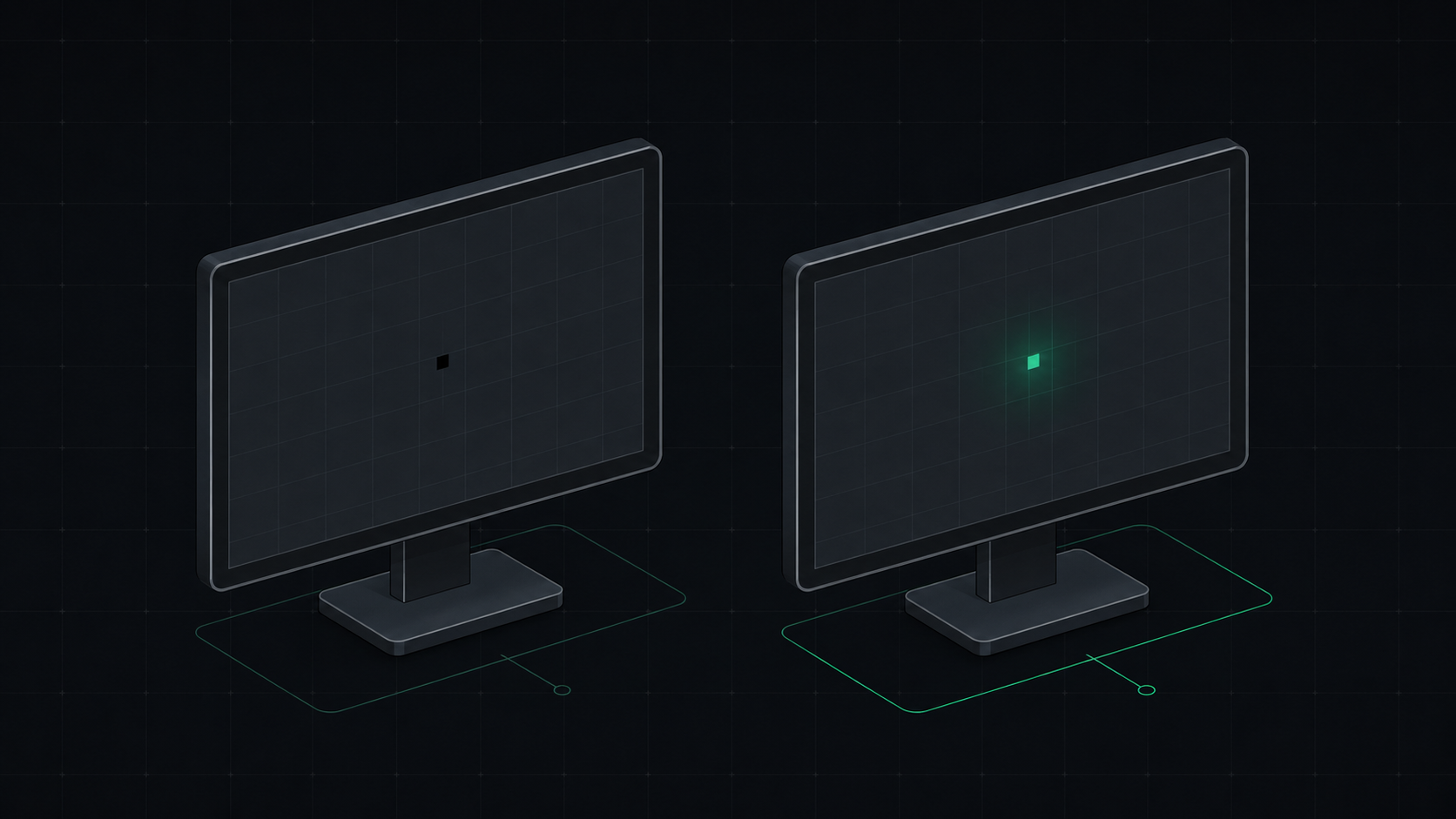
Learn the exact difference between a dead pixel and a stuck pixel, how to test for both, and what you can do to fix a stuck pixel on your monitor, laptop, or phone screen.
What Is a Dead Pixel?
A dead pixel is a picture element on your display that permanently fails to light up. It always appears as a small black dot regardless of what image is shown on screen. This happens when the transistor powering that pixel burns out or fails during manufacturing — cutting off all electrical signal to the pixel.
Dead pixels are a hardware defect and cannot be repaired with software. If you have a dead pixel, your only options are warranty replacement or learning to live with it.
What Is a Stuck Pixel?
A stuck pixel (also called a "hot pixel") is permanently locked to a single color — most commonly red, green, blue, or white. Unlike a dead pixel which receives no power, a stuck pixel receives constant power, keeping one or more of its sub-pixels permanently illuminated.
Stuck pixels are often visible as a tiny bright dot that does not match the surrounding colors. The good news: stuck pixels can sometimes be fixed.
Dead Pixel vs Stuck Pixel: Quick Comparison
| Feature | Dead Pixel | Stuck Pixel |
|---|---|---|
| Appearance | Always black | Fixed bright color (red, green, blue, white) |
| Cause | Transistor failure — no power | Transistor stuck on — constant power |
| Fixable? | No — permanent hardware defect | Sometimes — with software or gentle pressure |
| Visibility | Visible on bright backgrounds | Visible on dark or contrasting backgrounds |
| Covered by warranty? | Requires pixel policy threshold | Requires pixel policy threshold |
How to Test for Dead or Stuck Pixels
The most reliable way to find dead or stuck pixels is with a full-screen color test. Here is how:
- Clean your screen first. Wipe with a dry microfiber cloth. Dust and smudges mimic dead pixels and fool many users.
- Darken the room. Ambient light makes defects harder to spot.
- Run the color test. Use our free Dead Pixel Test tool to cycle through pure black, white, red, green, and blue full-screen backgrounds.
- Inspect closely. Look for any dot that does not match the background. Black dot on any color = dead pixel. Colored dot = stuck pixel.
How to Fix a Stuck Pixel
There are two main approaches to fixing a stuck pixel. Neither is guaranteed, but both are safe to try:
Method 1: Pixel-Flashing Software
Software that rapidly flashes the affected pixel area through thousands of color combinations per second can sometimes "shock" a stuck sub-pixel back into normal operation. Run it for 10–30 minutes while the stuck pixel is on screen.
Method 2: Gentle Physical Pressure
Turn off your screen. Fold a soft microfiber cloth into a small point. Apply very gentle pressure to the stuck pixel for 10–30 seconds while the screen is off. Then turn the screen back on. The light pressure can sometimes jostle the liquid crystal material back into place. Never press directly with a finger or sharp object — this can cause permanent damage.
Method 3: Warm the Display
Leave the display running a bright image for several hours in a warm room. Thermal expansion can sometimes help stuck liquid crystals relax back into their normal position.
When to Contact Warranty Support
Most major monitor manufacturers use a minimum pixel defect policy. A single dead or stuck pixel typically does not qualify for free replacement. Here are common thresholds:
| Brand | Typical Dead Pixel Replacement Threshold |
|---|---|
| Dell (UltraSharp) | 1 dead pixel (premium "No Dead Pixel" policy) |
| LG | 5+ bright sub-pixels or 3+ dark pixels |
| Samsung | Cluster of defective pixels per ISO 13406-2 |
| ASUS | 3+ bright pixels or 5+ dead pixels |
| BenQ | 3+ dead pixels within a 30x30 pixel area |
Always check your specific monitor's warranty documentation for the exact policy.
Dead Pixels on Phones and Laptops
The same dead/stuck pixel distinction applies to phone and laptop screens. OLED displays (common in premium phones) tend to have fewer dead pixels because there is no backlight — each pixel generates its own light. However, OLED is more prone to "burn-in" from static images displayed for long periods.
Summary
If your pixel is always black → it is likely dead and is a permanent hardware defect. If your pixel shows a fixed bright color → it is stuck, and is worth trying to fix with software or gentle pressure before contacting warranty support.
Use our Dead Pixel Test tool to run a full screen inspection — it takes less than 2 minutes and requires no download.
ScreenInspector Editorial & Hardware Team
Verified Display AnalystWritten and verified by display engineers and hardware analysts. Data is cross-referenced with browser API standards, panel manufacturer datasheets, and physical pixel density metrics.
Frequently Asked Questions
What is the difference between a dead pixel and a stuck pixel?
A dead pixel is always black because the transistor controlling it has failed and the pixel receives no power. A stuck pixel is locked to a color — red, green, blue, or white — because it is permanently on. Dead pixels cannot be fixed; stuck pixels sometimes can.
Can a dead pixel be fixed?
True dead pixels (permanently black) are a hardware failure and cannot be repaired with software. However, what looks like a dead pixel is often a stuck pixel, which sometimes responds to software-based pixel exercises or gentle physical pressure.
How do I know if my pixel is dead or stuck?
Run a full-screen color test. If the pixel shows as black on every color background — it is dead. If it shows a fixed color (red, green, blue) on other backgrounds, it is stuck. Our free Dead Pixel Test tool can help you identify this instantly.
Does warranty cover dead pixels?
Most manufacturers (Dell, LG, Samsung, ASUS) require a minimum of 3 to 8 dead pixels in a cluster to qualify for a warranty replacement. A single dead pixel usually does not meet the threshold. Check your specific monitor's dead pixel policy before contacting support.
How long does it take to fix a stuck pixel?
Pixel-flashing software typically runs for 10 to 30 minutes. Some stuck pixels respond immediately; others may need several sessions over a few days. If a stuck pixel does not respond after 3–4 attempts, it is likely a permanent defect.