HDR & Peak Brightness Test
Detect display HDR support, test 400 to 1000-nit luminance targets, and inspect highlight tone clipping.
Near-White Highlight Clipping Scale
On a properly calibrated HDR screen, every numbered square from #1 to #16 should be distinctly visible against the background.
What is High Dynamic Range (HDR)?
HDR (High Dynamic Range) is a display technology that expands contrast ratio and color depth, rendering specular highlights up to 1,000+ nits alongside deep shadow details without highlight clipping.
Frequently Asked Questions
How do I test HDR on my monitor? ↓
First, enable HDR in your operating system settings (Windows 11: Settings -> System -> Display -> Use HDR; macOS: System Settings -> Displays -> High Dynamic Range). Then, use our HDR pattern tool below to inspect peak luminance targets and white highlight clipping.
What is the difference between DisplayHDR 400, 600, and 1000? ↓
DisplayHDR 400 requires a minimum peak brightness of 400 nits (basic HDR). DisplayHDR 600 requires 600 nits with local dimming. DisplayHDR 1000 and True Black (OLED) require 1000+ nits peak brightness for true deep contrast and realistic highlights.
Why does HDR look washed out on my Windows monitor? ↓
HDR looks washed out on Windows if 1) SDR content brightness slider is set too low, 2) Your monitor lacks local dimming (e.g. basic IPS edge-lit HDR400), or 3) Windows HDR Color Management calibration has not been run.
What is DCI-P3 and Rec.2020 color gamut? ↓
DCI-P3 is the cinema color standard covering 25% more colors than sRGB. Rec.2020 is the wide gamut target for ultra-high-definition 4K HDR displays.
Recommended Technical Guides
 9 min read
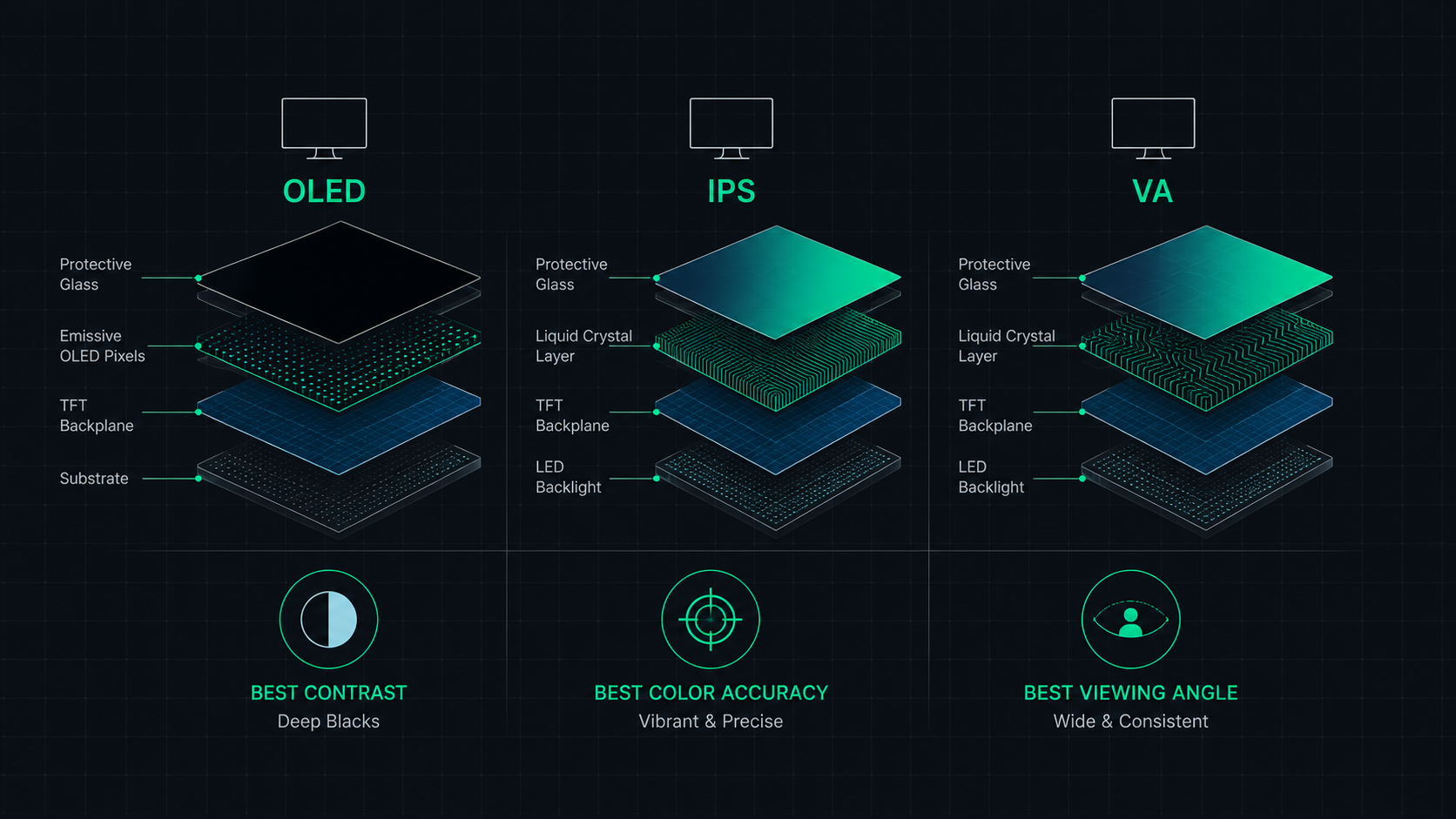
OLED vs IPS vs VA: Which Monitor Panel Type Is Best for You?
Complete comparison of OLED, IPS, and VA monitor panel technologies for gaming, creative work, and everyday use. Understand the trade-offs of contrast, color accuracy, response time, and burn-in risk to make the right choice in 2026.
 8 min read
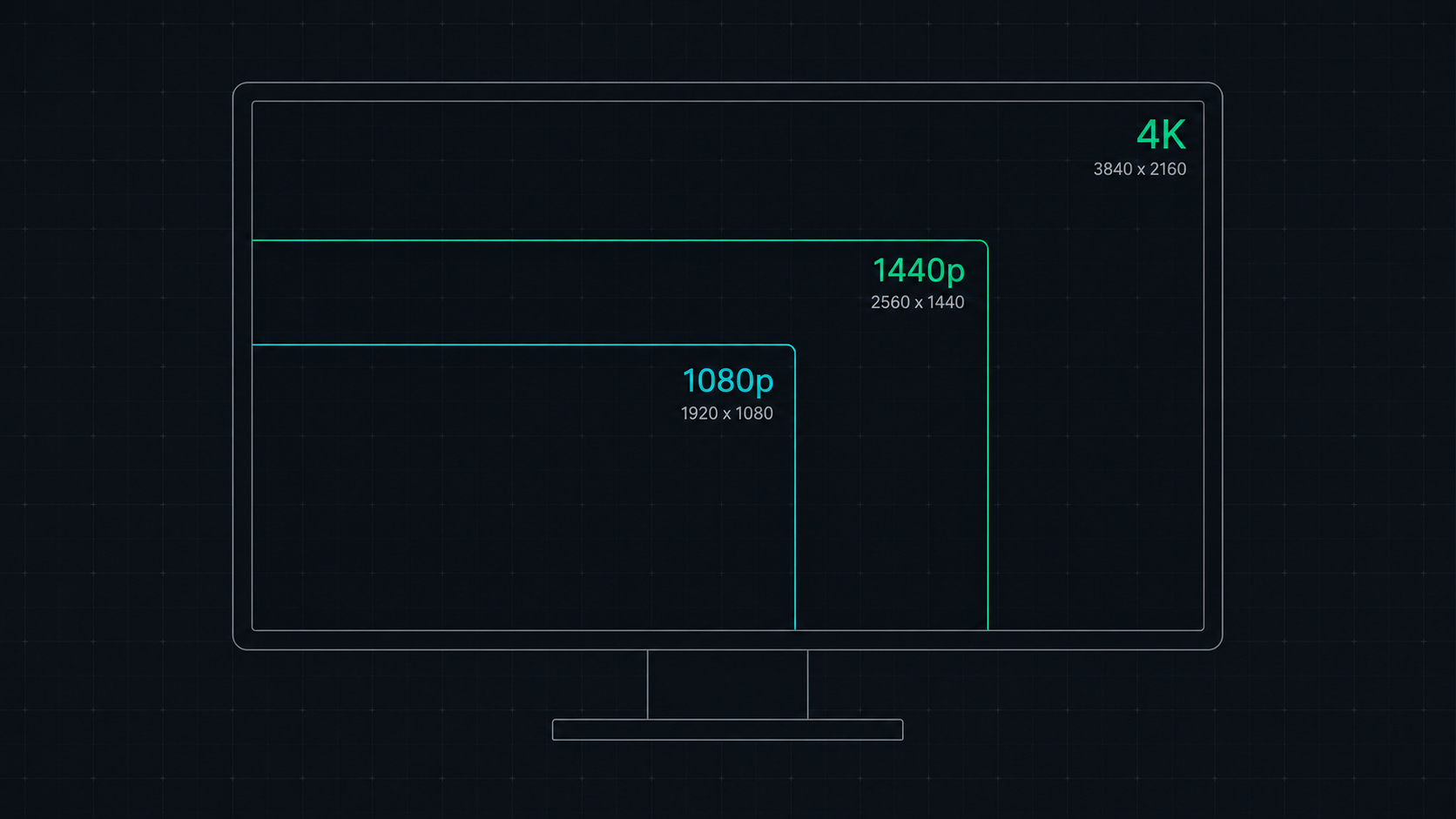
1080p vs 1440p vs 4K: Which Resolution Is Right For You in 2026?
Comprehensive comparison of 1080p, 1440p, and 4K resolutions for gaming, work, and creative use. Find out which screen resolution is worth it in 2026 based on your monitor size, GPU, and viewing distance.
 6 min read
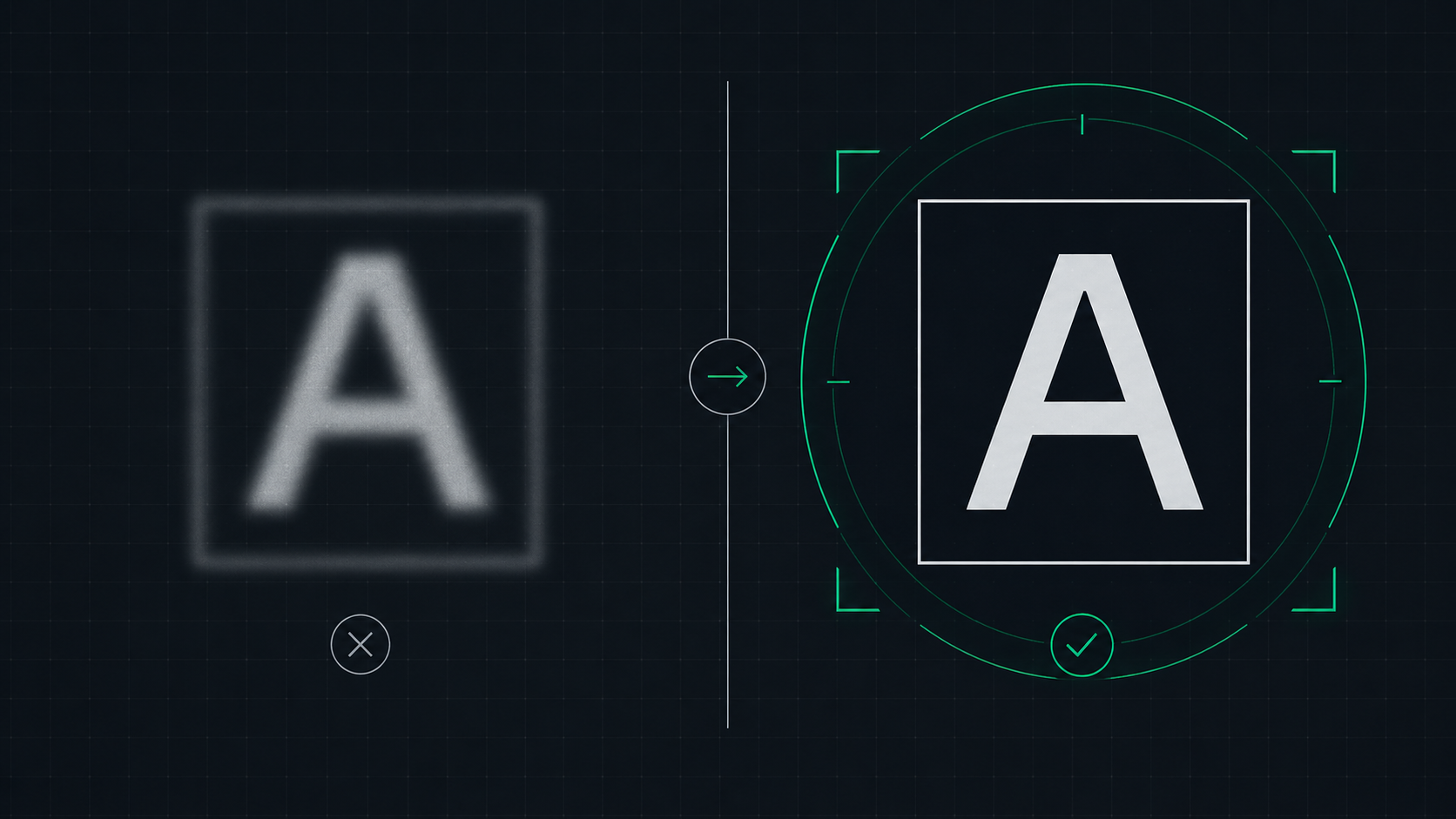
How to Fix a Blurry Screen on Windows and Mac (2026 Guide)
Step-by-step guide to fixing blurry text and blurry displays on Windows 11, Windows 10, and macOS. Fix display scaling issues, ClearType settings, and external monitor blurriness caused by incorrect resolution or HiDPI settings.