VRR & Screen Tearing Test
Simulate GPU frame rate fluctuations and test G-Sync, FreeSync, and V-Sync motion pacing against horizontal screen tearing.
Dynamic timing locks the panel refresh rate to the GPU's fluctuating output, delivering fluid motion without torn frames.
When frame rates fluctuate out of sync with fixed refresh cycles, horizontal split lines (tearing) appear across the moving bar.
What is Variable Refresh Rate (VRR)?
Variable Refresh Rate (VRR) is a display technology that synchronizes a monitor's refresh cycles dynamically to the real-time frame output of a GPU or gaming console. This eliminates screen tearing and frame pacing stutter without introducing the high input latency of traditional double or triple-buffered V-Sync.
Frequently Asked Questions
What is Variable Refresh Rate (VRR), G-Sync, and FreeSync? ↓
Variable Refresh Rate (VRR) synchronizes your monitor's refresh rate dynamically with your graphics card's render output frame rate. G-Sync (Nvidia) and FreeSync (AMD) eliminate horizontal screen tearing and stuttering without the input lag of V-Sync.
What causes horizontal screen tearing and how does VRR eliminate it without input lag? ↓
Screen tearing occurs when the GPU writes a new image buffer into memory while the display is midway through its scanout pass, causing two mismatched frame fragments to be shown simultaneously. Traditional V-Sync fixes this by forcing the GPU to wait for the monitor's next vertical blank interval, adding 16–50 ms of input latency. VRR reverses this relationship: the display waits for the GPU to finish rendering, refreshing the instant the frame is ready with near-zero latency penalty.
What happens when FPS exceeds or drops below the monitor's VRR range? ↓
When game FPS exceeds the monitor's maximum refresh rate (e.g. 150 FPS on a 144Hz monitor), VRR disengages and screen tearing returns unless capped with an in-game frame limiter (recommended 3 FPS below maximum refresh). When FPS drops below the minimum VRR threshold (typically 40–48Hz), Low Framerate Compensation (LFC) automatically duplicates frames (e.g. displaying 35 FPS at 70Hz) to prevent stutter.
How do I check if G-Sync or FreeSync is enabled on my monitor? ↓
Open Nvidia Control Panel (Display -> Set up G-SYNC) or AMD Software Adrenalin (Gaming -> Display -> AMD FreeSync). Ensure VRR is set to 'Enable for windowed and full screen mode'. You can test frame pacing using our interactive VRR visualizer below.
Why does screen tearing happen? ↓
Screen tearing occurs when your GPU sends a new frame in the middle of your monitor's display refresh cycle. The top half of the screen displays frame A while the bottom half displays frame B, creating a noticeable horizontal tear line.
Does G-Sync cause input lag? ↓
No. Unlike traditional V-Sync which buffers frames and adds 16-50 ms of input lag, G-Sync and FreeSync dynamically adjust the monitor's timing on-the-fly, adding zero perceptible latency.
Recommended Technical Guides
 7 min read
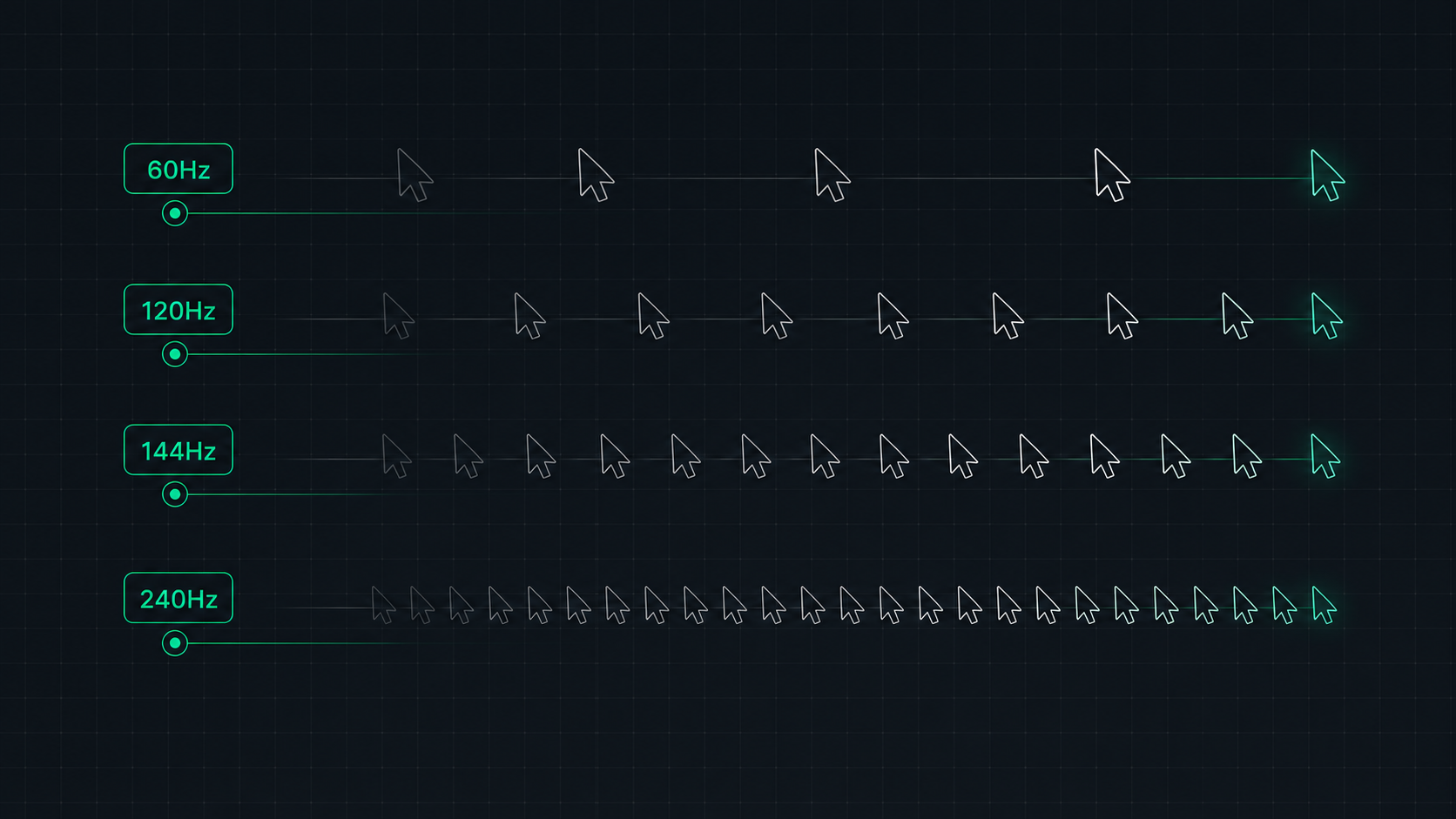
Monitor Refresh Rate Explained: 60Hz vs 120Hz vs 144Hz vs 240Hz
Understand monitor refresh rates and how they impact gaming, video, and everyday use. Learn the real difference between 60Hz, 120Hz, 144Hz, and 240Hz displays and which is right for your setup in 2026.
 9 min read
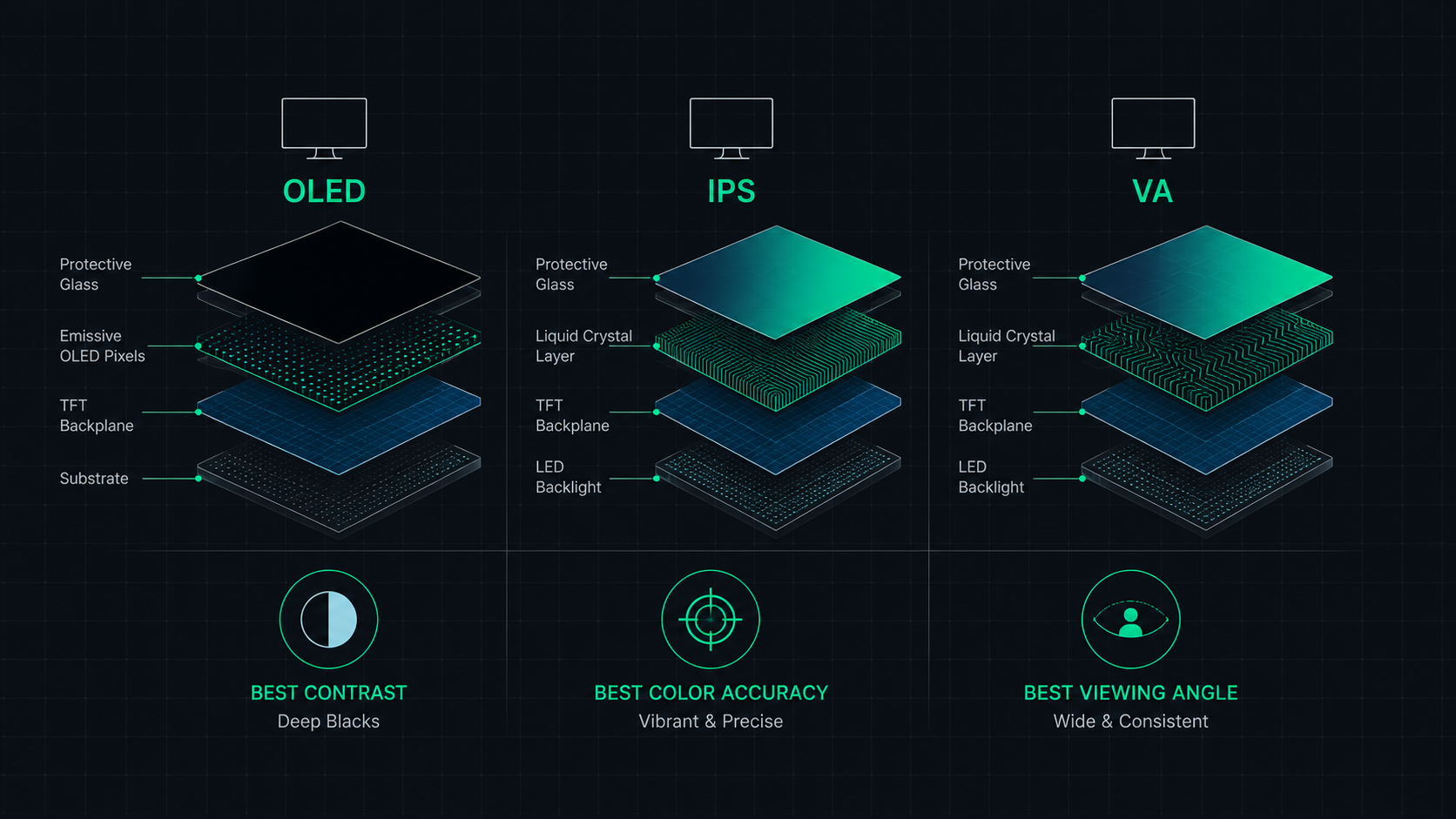
OLED vs IPS vs VA: Which Monitor Panel Type Is Best for You?
Complete comparison of OLED, IPS, and VA monitor panel technologies for gaming, creative work, and everyday use. Understand the trade-offs of contrast, color accuracy, response time, and burn-in risk to make the right choice in 2026.
 6 min read
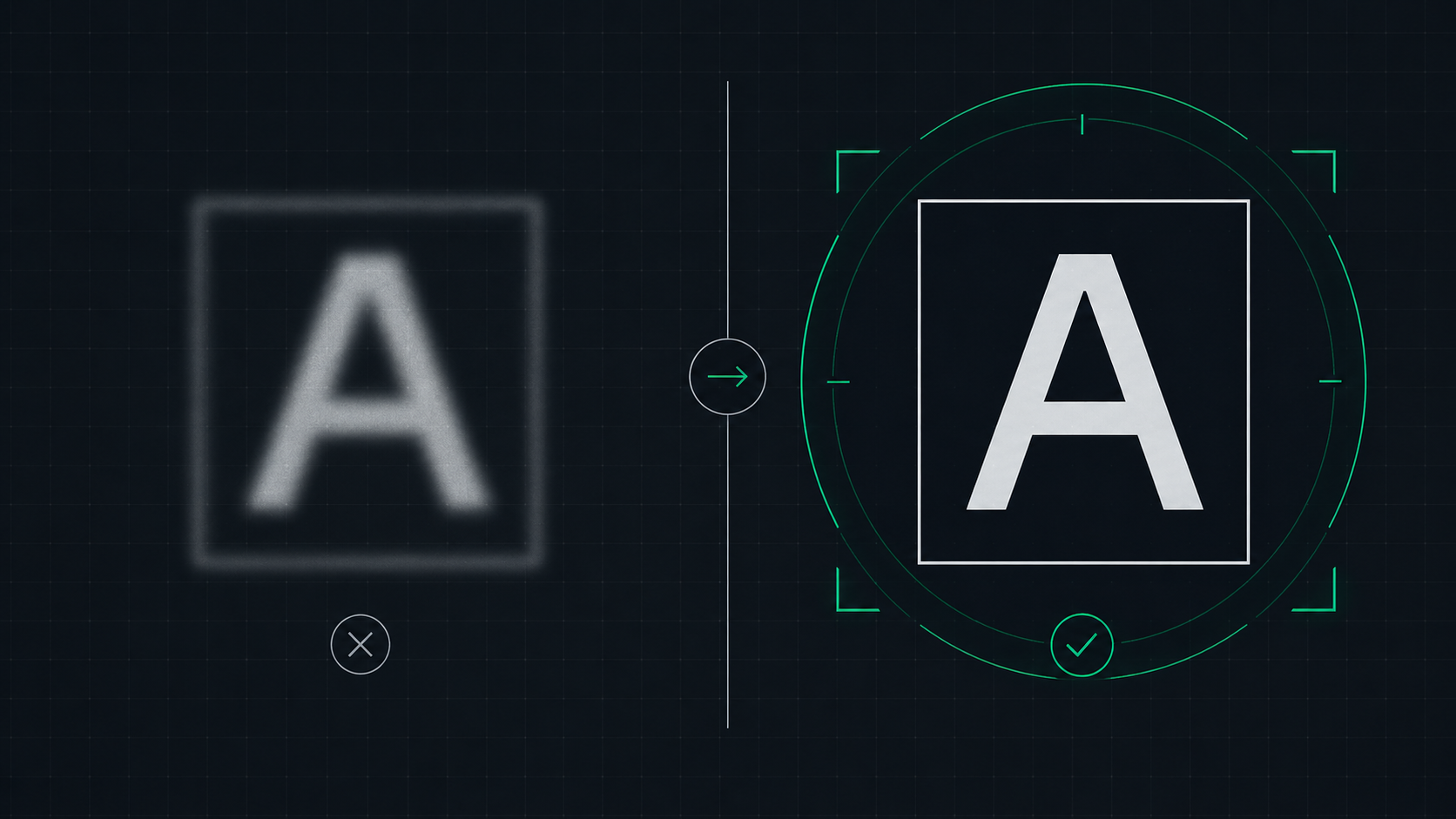
How to Fix a Blurry Screen on Windows and Mac (2026 Guide)
Step-by-step guide to fixing blurry text and blurry displays on Windows 11, Windows 10, and macOS. Fix display scaling issues, ClearType settings, and external monitor blurriness caused by incorrect resolution or HiDPI settings.