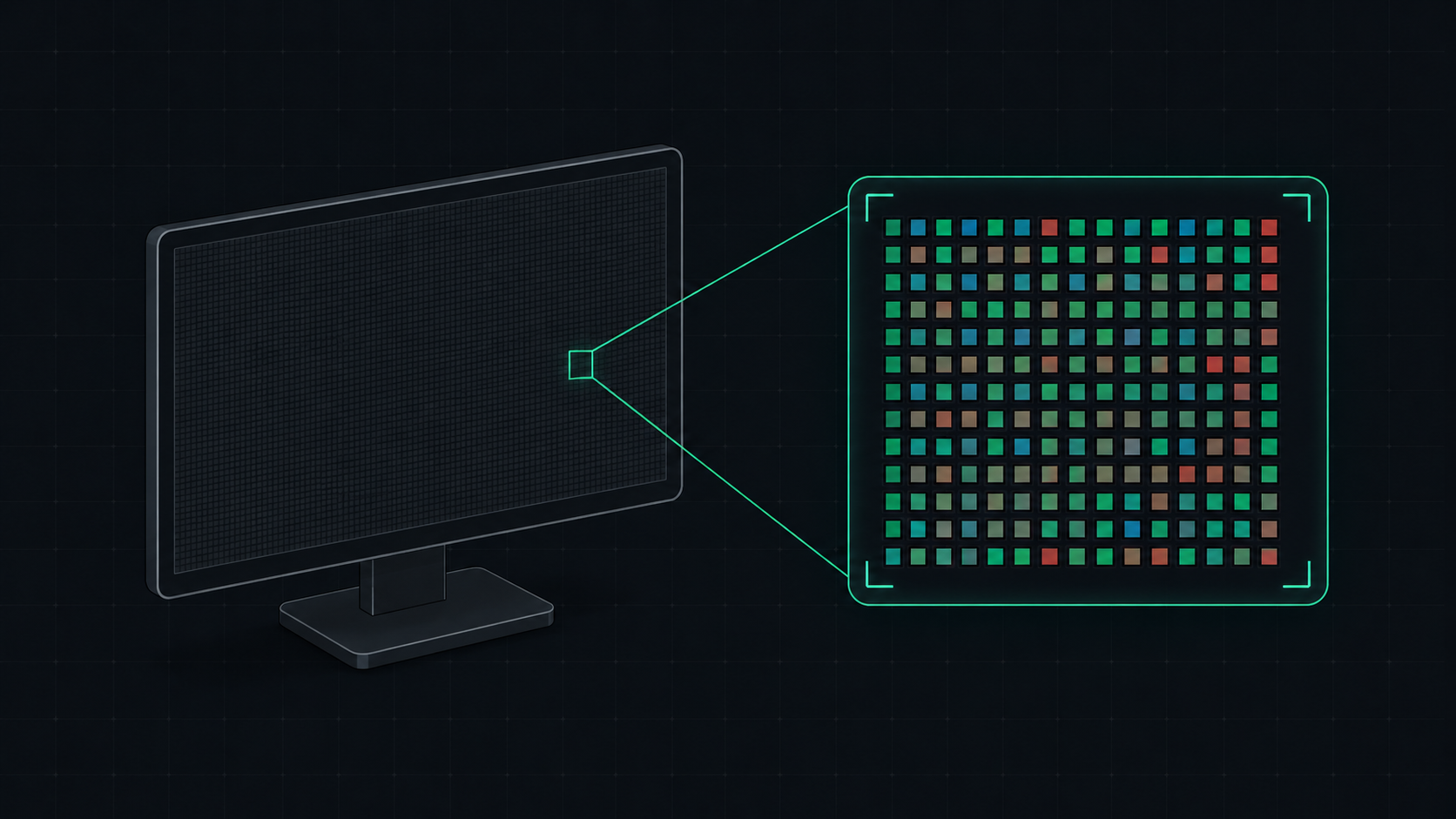
PPI (Pixels Per Inch) measures how many pixels are packed into one inch of a display screen. Learn what PPI means, how it affects image quality, and what a good PPI is for monitors, phones, and TVs.
What Does PPI Mean?
PPI (Pixels Per Inch) is a measurement of how many pixels fit into a single inch of a display screen. It is the primary metric for describing a screen's pixel density — how sharp and detailed the image appears to the naked eye. A higher PPI means pixels are smaller and more densely packed, making text and images look crisper and smoother.
Why Does PPI Matter?
PPI determines whether you can see individual pixels on your screen. At low pixel densities, you can see the jagged "pixelated" edges of text and curves. At high pixel densities, the image looks continuous and photographic — your eye cannot distinguish individual pixels.
This is the core idea behind Apple's Retina display — a marketing term Apple uses for displays where, at normal viewing distance, the pixel density is high enough that individual pixels become invisible to the naked eye.
How to Calculate PPI
The PPI formula uses the Pythagorean theorem to find the diagonal resolution in pixels, then divides it by the physical screen size:
- Calculate the diagonal resolution: √(horizontal pixels² + vertical pixels²)
- Divide by the physical diagonal screen size in inches
For example, a 27-inch monitor at 2560×1440 resolution:
- Diagonal pixels: √(2560² + 1440²) = √(6,553,600 + 2,073,600) = √8,627,200 ≈ 2937.6 pixels
- PPI: 2937.6 ÷ 27 ≈ 109 PPI
Save time and use our free PPI Calculator tool to calculate this instantly.
PPI by Screen Type: Quick Reference
| Device / Size | Resolution | PPI | Experience |
|---|---|---|---|
| 27" Monitor (1080p) | 1920×1080 | 82 PPI | Blurry — pixels visible |
| 24" Monitor (1080p) | 1920×1080 | 92 PPI | Standard / acceptable |
| 27" Monitor (1440p) | 2560×1440 | 109 PPI | Excellent — sweet spot |
| 24" Monitor (1440p) | 2560×1440 | 122 PPI | Very sharp |
| 27" Monitor (4K) | 3840×2160 | 163 PPI | Ultra sharp — scaling needed |
| 15.6" Laptop (1080p) | 1920×1080 | 141 PPI | Sharp for laptop viewing |
| iPhone 16 Pro | 1320×2868 | 460 PPI | Super Retina — pixel invisible |
| 55" 4K TV | 3840×2160 | 80 PPI | Sharp from normal TV distance |
PPI vs DPI: What's the Difference?
These two terms are often confused but they refer to different things:
- PPI (Pixels Per Inch) — A screen metric. Describes the number of physical pixels packed into one inch of a display panel.
- DPI (Dots Per Inch) — A printing metric. Describes how many ink dots a printer places per inch of printed paper.
When discussing monitors and screens, always use PPI. DPI only applies to printing and image file settings for printers.
What is a Good PPI?
The "right" PPI depends on the device and how far away you view it:
- Desktop monitors: 90–130 PPI is ideal. This provides crisp text and images without forcing you to scale the OS interface.
- Laptops: 130–220 PPI is common and comfortable at laptop viewing distances (about 50–60 cm).
- Smartphones: 300–500 PPI. Held 20–30 cm from the face, phones need very high PPI to look sharp.
- TVs: 50–100 PPI. Viewed from 2–3 meters away, the brain perceives lower PPI as sharp because pixels subtend a smaller angle in the visual field.
High PPI and Display Scaling
Very high PPI displays (163 PPI+ on a 27" 4K monitor) require display scaling in your operating system — typically 125% or 150% in Windows, or 2× ("Retina") mode on macOS. Without scaling, text and UI elements become too small to read comfortably.
Display scaling does NOT reduce sharpness on native-resolution displays. The OS renders elements at 2× the pixel density and scales them down, which produces crisper text than a lower-PPI screen at 100% scaling.
Calculate Your Screen's PPI Now
Use our free PPI Calculator — enter your screen's resolution and diagonal size to instantly find out your pixel density, dot pitch, and whether your display qualifies as Retina.
ScreenInspector Editorial & Hardware Team
Verified Display AnalystWritten and verified by display engineers and hardware analysts. Data is cross-referenced with browser API standards, panel manufacturer datasheets, and physical pixel density metrics.
Frequently Asked Questions
What does PPI stand for?
PPI stands for Pixels Per Inch. It is a measurement of pixel density that describes how many pixels are packed into a single inch of a display screen. A higher PPI means more pixels per inch, resulting in a sharper, more detailed image.
What is a good PPI for a monitor?
For standard desktop monitors, 90–120 PPI is considered good and provides clear, readable text without needing OS scaling. High-density displays like 4K monitors typically have 140–163 PPI, which looks extremely sharp but may require scaling at 125–150% in Windows or macOS.
What is the difference between PPI and DPI?
PPI (Pixels Per Inch) refers to screens and digital displays — it measures how many physical pixels exist per inch of screen. DPI (Dots Per Inch) is a printing term describing how many ink dots a printer places per inch of paper. For screens, PPI is the correct term.
How do you calculate PPI?
To calculate PPI: (1) Find the diagonal resolution in pixels using the Pythagorean theorem — √(width² + height²). (2) Divide that number by the physical diagonal screen size in inches. For example, a 27-inch 2560×1440 monitor has a PPI of approximately 109.
Does higher PPI mean better picture quality?
Higher PPI means sharper, more detailed images with less visible pixelation. However, overall picture quality also depends on color accuracy, contrast ratio, panel type (OLED vs IPS), and refresh rate. PPI is one important factor but not the only one.